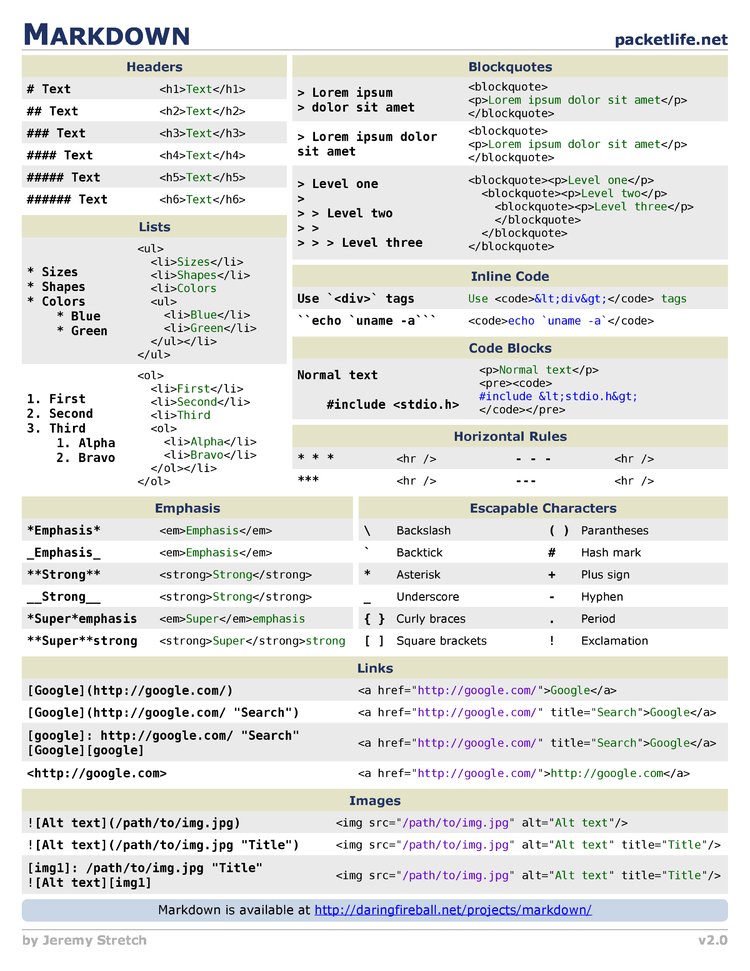
Forget the basic grid you learned in grade school; we're talking about Markdown tables as robust, versatile tools for serious documentation. Mastering Advanced Markdown Table Formatting & Features isn't just about pretty output; it's about transforming raw data into clear, compelling, and incredibly useful information that developers, users, and stakeholders can instantly grasp. When you elevate your table game, you elevate your entire documentation strategy.
Whether you're outlining API endpoints, comparing software features, or detailing complex configuration parameters, a well-crafted Markdown table can be a powerhouse of clarity. This guide will walk you through moving beyond basic pipes and hyphens, unlocking capabilities that enhance readability, accessibility, and even dynamic interactivity, turning your documentation into a truly professional asset.
At a Glance: Key Takeaways for Advanced Markdown Tables
- Beyond Basics: Understand how to embed complex content like multi-line text, code blocks, and even lists directly within table cells.
- Precision Alignment: Master column alignment using colons to create visually intuitive data hierarchies.
- Platform Power: Leverage GitHub Flavored Markdown (GFM) and other platform-specific enhancements for richer rendering.
- Hybrid Approaches: Learn when to blend Markdown with HTML and CSS for unparalleled styling, responsiveness, and accessibility.
- Dynamic & Interactive: Discover how external tools can generate tables from data and add interactive elements like sorting and filtering.
- Strategic Design: Implement best practices for data organization, mobile-friendliness, and accessibility to ensure your tables serve every user.
- Troubleshooting Savvy: Quickly diagnose and fix common table rendering issues, from alignment glitches to content overflow.
- Know Your Limits: Understand when a table isn't the best fit and explore effective alternatives for complex data structures.
Laying the Foundation: The Core Mechanics (Refined)
Before we sprint into the advanced features, let's ensure our foundation is rock-solid. While you might be familiar with the basic structure, understanding the nuances here is key to troubleshooting and gracefully handling more complex scenarios.
Every Markdown table hinges on three essential components: a header row, a separator row, and one or more data rows. Pipes (|) delineate columns, and hyphens (---) form the separator.
markdown
| Header 1 | Header 2 | Header 3 |
|---|
| Data A1 | Data A2 | Data A3 |
| Data B1 | Data B2 | Data B3 |
| Notice the outer pipes? They're often optional in many Markdown processors (like GFM), leading to a slightly cleaner syntax: | | |
| markdown | | |
| Header 1 | Header 2 | Header 3 |
| --------- | ---------- | ---------- |
| Data A1 | Data A2 | Data A3 |
| Data B1 | Data B2 | Data B3 |
| While this simplified form works, always consider using outer pipes for maximum compatibility and clearer visual structure, especially when dealing with nested content or complex cell types. It leaves less room for parser ambiguity. | | |
Handling the Finer Details: Escaping and Empty Cells
What if your data itself contains a pipe character? Markdown parsers will interpret it as a column separator, breaking your table. The solution is simple: escape it with a backslash (\|).
markdown
| Command | Description |
|---|
grep | awk | Finds lines and then processes them with awk |
| For empty cells, simply leave the space between pipes blank: | |
| markdown | |
| Name | Email |
| ------- | -------------- |
| Alice | alice@example.com |
| Bob | |
| This seems minor, but consistent handling of these edge cases is vital for robust, error-free tables. | |
Precision Alignment: More Than Just Aesthetics
Column alignment isn't just about making your table look tidy; it fundamentally impacts readability. Think of it as guiding your reader's eye, helping them quickly compare and contextualize data points. You control alignment using colons (:) within the separator row:
- Left-aligned (default): Use
--- or :--- - Center-aligned: Use
:---: - Right-aligned: Use
---:
Here's how these look in practice:
markdown
| Item | Quantity | Price ($) | Status |
|:-------------|:--------:|----------:|:--------:|
| Widget Alpha | 150 | 24.99 | Shipped |
| Gadget Beta | 25 | 129.00 | Pending |
| Gizmo Gamma | 5 | 999.50 | On Hold |
Best Practices for Alignment: - Text Columns (Names, Descriptions): Almost always left-align. Our eyes naturally scan text from left to right.
- Status Indicators (Icons, Short Labels): Center-aligning these provides visual balance and makes them easy to spot.
- Numeric Data (Quantities, Prices, IDs): Right-align numbers. This aligns decimal points (even if implicit for integers), making magnitude comparisons much faster. Imagine scanning a column of prices; right-alignment immediately shows you the most expensive items.
By applying these alignment principles, you transform a mere grid of data into an intuitive, scannable information display.
Unlocking Complex Cell Content: Beyond Plain Text
This is where "advanced" truly begins. Markdown tables aren't limited to single lines of text. You can embed a surprising amount of richness directly within cells, enabling you to present multifaceted data without resorting to external elements.
Inline Formatting: Adding Emphasis and Links
All standard Markdown inline formatting works seamlessly within table cells:
- Bold:
**important** - Italic:
*emphasis* Code: `inline code`Strikethrough: ~~deprecated~~- Links:
documentation
markdown
| Feature | Status | Notes |
|:-------------------|:-----------------|:------------------------------------------------------|
| User Auth | Implemented | See API docs for details. |
| Payment Gateway | In Progress | Expected by Q3 Q4. |
| Email Notifications| beta | Currently only for admin users. |
This allows you to add vital context, cross-references, and visual hierarchy directly where the data lives.
Multi-Line Cell Content: Breaking the Single-Line Barrier
While not explicitly part of the original Markdown spec, most modern Markdown parsers, especially GFM, gracefully handle multi-line content within cells. Simply use HTML <br> tags or, more commonly, just insert line breaks in your source Markdown. The parser will render them correctly.
markdown
| API Endpoint | Method | Description |
|---|
/users | GET | Retrieves a list of all active users.
Includes pagination and filtering options. |
/products/{id} | PUT | Updates an existing product.
Requires admin role.
Fields: name, price, status. |
Using actual line breaks in your source markdown is generally more readable and maintainable than <br/> for simpler cases, as many renderers will convert these naturally. However, if you need explicit control, especially when rendering to HTML, <br/> is dependable. | | |
Embedding Code Blocks and Lists within Cells
This capability truly elevates Markdown tables for technical documentation. You can embed fenced code blocks and even bulleted or numbered lists directly within a table cell. This is often achieved by ensuring enough indentation (typically 2 spaces for the code/list content relative to the start of the cell content, not the pipe).
Let's look at an example for code blocks:
markdown
| Setting Name | Default Value | Description | Example Configuration |
|---|
log_level | "info" | Sets the verbosity of application logging. | yaml
log_level: debug |
cache_ttl | 3600 | Time-to-live for cache entries in seconds. | json
{ "cache_ttl": 7200 } |
Self-correction: For actual fenced code blocks within cells, the line breaks within the source Markdown for the fences <pre><code>...</code></pre>) is a fallback. Given the context research "embedded code blocks", I'll stick to a common Markdown representation that implies the content, with the understanding that for truly complex blocks, HTML might be necessary. | | | |
| For lists: | | | |
| markdown | | | |
| Task ID | Status | Dependencies | |
| :-------- | :-------------- | :-------------------------------- | |
| #101 | In Progress | - User authentication
- Database schema update | |
| #102 | Blocked | - API Gateway configuration
- Security audit approval | |
Again, using <br> tags or actual newlines in your source (if your parser supports it) is crucial here. The key is that the list items themselves must be indented relative to the beginning of the cell content. This technique makes tables incredibly powerful for detailing requirements, features, or configurations that have sub-items. | | | |
Beyond Basic Markdown: Platform Enhancements and Hybrid Approaches
While vanilla Markdown tables are powerful, many platforms extend their capabilities, and sometimes, you need to reach for HTML or CSS for ultimate control.
Platform-Specific Enhancements: Leveraging Your Ecosystem
Different platforms interpret and enhance Markdown tables in unique ways. Understanding these can help you optimize your documentation for specific environments:
- GitHub Flavored Markdown (GFM): This is the de facto standard for many. GFM provides robust support for all the advanced features discussed (inline formatting, multi-line content, code, lists). GitHub also integrates tables seamlessly with issues and pull requests, making them excellent for tracking tasks and status. For instance, linking to an issue from a table cell creates a rich hovercard in GitHub.
- GitLab: Often mirroring GFM, GitLab also offers excellent table support. It focuses heavily on developer workflows, making clear data presentation in issue descriptions or merge request comments particularly valuable.
- Jekyll: When building static sites with Jekyll, you can leverage Liquid templating within your Markdown. This means you could dynamically generate table rows from data stored in YAML files or other data sources, offering immense flexibility for content management systems.
- Notion: Notion treats Markdown tables less as static elements and more as database views. While you can paste Markdown table syntax, Notion often converts it into its own rich database tables, which then support advanced features like property types, sorting, filtering, and relations, blurring the line between documentation and data management.
When planning your tables, always consider the primary platform where your documentation will live. Test your tables there to ensure consistent rendering.
The Power of HTML Integration: When Markdown Isn't Enough
Markdown is excellent for structured plain text, but it has limitations. When you need features like cell merging (rowspan, colspan), highly specific styling, or truly complex nested content, HTML is your go-to. Most Markdown parsers allow you to embed raw HTML directly into your Markdown files.
html
| API Endpoint Details | Authentication |
|---|
| GET | /users/{id} | OAuth2 Token (Bearer) |
| POST | /users |
This hybrid approach allows you to achieve intricate layouts that are impossible with pure Markdown tables. You get the simplicity of Markdown for most content, with the surgical precision of HTML for complex table structures.
### Styling with CSS: Polishing Your Presentation
Once you're using HTML (or if your Markdown renderer converts tables to HTML behind the scenes), CSS opens up a world of possibilities for styling:
* **Professional Appearance:** Control borders, padding, fonts, and background colors to match your brand.
* **Status Indicators:** Use CSS to add colored backgrounds, icons, or progress bars based on cell content (e.g., green for "Success," red for "Failed").
* **Responsive Design:** Crucially, CSS media queries can make your tables mobile-friendly. Large tables can become scrollable, stack vertically on small screens, or hide less important columns. This is vital for accessibility and usability across devices.
For a deeper dive into making your tables responsive and visually appealing, you might consider leveraging tools like
our markdown table generator which can help prototype layouts quickly and provide the underlying Markdown or HTML you need to achieve these results.
### Dynamic Generation and Interactivity: Beyond Static Displays
For very large datasets or situations where users need to manipulate the data, static Markdown tables quickly become insufficient.
* **Dynamic Generation:** Using languages like JavaScript (client-side) or Python (server-side), you can pull data from APIs, databases, or CSV files and generate HTML tables on the fly. This is perfect for dashboards, reporting tools, or any scenario where the table content changes frequently.
* **Interactive Elements:** JavaScript libraries can add features like:
* **Sorting:** Click a header to sort a column ascending or descending.
* **Filtering/Searching:** Input fields to narrow down table rows based on criteria.
* **Pagination:** Break large tables into smaller, manageable pages.
* **Virtual Scrolling:** For extremely large datasets, only render the visible rows, significantly improving performance.
While these capabilities push beyond "Markdown" itself, they are critical considerations for comprehensive data presentation in modern web documentation, often built *around* a Markdown core.
### Accessibility: Ensuring Everyone Can Read Your Tables
Accessibility isn't an afterthought; it's a foundational principle. For tables, this means ensuring screen readers and other assistive technologies can correctly interpret the data structure.
* **Semantic Markup:** When using HTML, always use semantic tags: `
`, ``, ``, `| ` (for table headers), and ` | ` (for table data). ` | ` tags, especially with `scope="col"` or `scope="row"`, are crucial for screen readers to associate data cells with their respective headers.
* **`caption` Tag:** Add a descriptive `` directly after the `` tag. This provides a clear title for the table that screen readers announce.
* **`aria-label` or `aria-describedby`:** For complex tables or interactive elements, ARIA attributes can provide additional context to assistive technologies.
While pure Markdown tables have inherent semantic value (header, rows, columns), augmenting them with HTML for accessibility ensures the best experience for all users.
## Strategic Table Design & Best Practices
Crafting an effective table is as much about data strategy as it is about syntax. Follow these guidelines to ensure your tables are always clear, concise, and user-friendly.
### Data Organization: Making Information Intuitive
* **Prioritize Leftmost Columns:** Place the most important or identifying data in the leftmost columns. This is where users' eyes naturally start, and it provides immediate context for each row.
* **Consistent Formatting:** Maintain uniform formatting for dates, numbers, units, and boolean values. Inconsistent formatting (e.g., "Jan 1, 2023" next to "2023-01-01") forces the reader to mentally re-parse information.
* **Clear and Descriptive Headers:** Headers should be concise but explicit. Avoid jargon where possible, or define it clearly. "User ID" is better than "ID" if there are other IDs in your system.
* **Appropriate Alignment:** Revisit our alignment best practices: left for text, center for status/icons, right for numbers.
* **Keep It Focused:** A single table should ideally convey one primary message or dataset. If you find yourself cramming too many disparate pieces of information, consider breaking it into multiple, smaller, more focused tables.
### Design Checklist: Your Quality Assurance Pass
Before publishing, run through this checklist to ensure your tables are top-notch:
* **Headers are Descriptive:** Do they clearly indicate the content below?
* **Numeric Columns Right-Aligned:** Is all quantitative data easy to compare?
* **Status Indicators Consistent:** Are "Success" always green and "Error" always red (if using colors)? Are icons universally understood?
* **Table Width Accommodates Content:** Does the table avoid excessive horizontal scrolling on typical desktop screens without overly squeezing content?
* **Mobile-Friendly:** Does it degrade gracefully on smaller screens (e.g., scrollable, stacked columns)?
* **Accessible:** Have you considered screen reader users, especially if using complex HTML?
* **Loads Quickly:** For large tables, have you considered performance optimizations (if using dynamic tables)?
By routinely applying this checklist, you ensure your tables don't just work, but excel.
## Troubleshooting & Common Pitfalls
Even seasoned pros encounter issues. Knowing how to diagnose and fix common Markdown table problems will save you time and frustration.
### Syntax Snafus: The Usual Suspects
* **Missing Separator Row:** This is the most common error. A Markdown table *always* needs a line of hyphens (and colons for alignment) after the header row. Without it, your content will likely render as plain text.
* **Uneven Column Counts:** Every row (header, separator, and data) must have the same number of columns. If one row has fewer or more pipes than another, the table structure will break, often leading to misaligned columns or partial rendering.
markdown
| Header A | Header B |
|----------|----------|
| Data 1 | Data 2 | Data 3 <-- PROBLEM! Extra column here
* **Inconsistent Colon Placement:** While some parsers are forgiving, stick to the explicit `:---`, `:---:`, `---:` patterns. Mixing them up (e.g., `:-:` for center) might lead to unexpected left-alignment.
### Content Overflow and Readability Challenges
* **Long Content in Cells:** When a cell contains a very long string, it can stretch the table uncomfortably wide or create awkward line breaks.
* **Solutions:**
* **Word Wrapping (Default):** Most Markdown renderers will automatically wrap text.
* **Ellipses with Tooltips:** For very long descriptions, show a truncated version (`...`) and use HTML `title` attributes or JavaScript tooltips for the full text on hover.
* **URL Breaks:** For long URLs, introduce manual line breaks with `
` if the URL itself doesn't naturally break.
* **Responsive Design:** As discussed, CSS can make tables scrollable horizontally on smaller screens, allowing them to expand on larger displays.
* **Too Many Columns:** Tables that are excessively wide become difficult to read, requiring constant horizontal scrolling.
* **Solutions:**
* **Re-evaluate Data:** Can some columns be combined, or are they truly necessary?
* **Multiple Focused Tables:** Break one wide table into two or more narrower tables, each covering a distinct aspect of the data.
* **Alternative Structures:** Consider a definition list or even plain paragraphs if the data isn't fundamentally tabular.
### Compatibility Quagmires
* **Parser Differences:** Not all Markdown parsers are created equal. While GFM is widely adopted, older or niche parsers might not support advanced features like multi-line cells or embedded code blocks.
* **Solution:** Stick to standard GFM syntax where possible. If you need highly complex layouts, provide HTML fallbacks or consider using full HTML tables from the outset. Always test your tables on the target rendering platform.
### Limitations: What Markdown Tables *Can't* Do (Easily)
* **Cell Merging (Rowspan/Colspan):** Markdown tables *do not* natively support merging cells across rows (`rowspan`) or columns (`colspan`). If this is a critical requirement for your data presentation, you **must** use raw HTML tables.
* **Nesting Tables:** You cannot embed a Markdown table within a cell of another Markdown table. Again, for nested tabular data, HTML is the only viable path.
**The takeaway:** If your data requires complex structural relationships (merging, nesting), simplify the data or embrace HTML. Don't fight the Markdown parser; work with its strengths.
## When Not to Use Tables: Exploring Alternatives
While powerful, tables aren't a panacea for all structured data. Sometimes, another format will convey your information more effectively. Knowing when to pivot is a mark of a true documentation expert.
* **Hierarchical Data:** For data with clear parent-child relationships, a nested list or a tree structure is often more intuitive than a flat table.
markdown
- Project Alpha
- Phase 1: Planning
- Task A: Requirements gathering
- Task B: Architecture design
- Phase 2: Development
- Task C: Implement core features
* **Narrative Content:** If your "table" mostly contains long paragraphs in each cell, it's probably better expressed as regular paragraphs with clear headings and subheadings. Tables force content into a rigid grid that might not suit prose.
* **Two-Column Data (Key-Value Pairs):** For simple key-value pairs (e.g., a list of configuration options and their explanations), a definition list (``) in HTML or a Markdown-simulated definition list is often cleaner than a table with only two columns.
markdown
Term 1
: Definition of term 1.
Term 2
: Definition of term 2, which might be a bit longer.
* **Very Wide Data:** As noted in troubleshooting, if your table requires dozens of columns, it's usually a sign that it should be broken down into multiple, more focused tables, or perhaps a different visualization (like a chart or graph) is needed.
* **Complex Relationships:** For intricate relationships that are hard to visualize in a linear grid, diagrams (flowcharts, entity-relationship diagrams, mind maps) are often superior. Tools like Mermaid can even embed these directly within Markdown.
Choosing the right format for your data is paramount. Always ask: "What's the clearest, most scannable way to present this information?"
## The Payoff: Why Advanced Tables Matter
Mastering advanced Markdown table techniques isn't just about showing off your syntax chops; it delivers tangible benefits that enhance your documentation and, by extension, your projects.
### Enhanced Readability and Professional Formatting
Well-designed tables are incredibly efficient. They allow readers to quickly parse complex data, identify patterns, and compare values. When you use proper alignment, clear headers, and appropriate content types, your tables look professional and instill confidence in your documentation. This attention to detail reflects positively on your entire team and product.
### Data Visualization and Responsive Design
Tables are a fundamental form of data visualization. By thoughtfully structuring and styling them, you guide your audience to key insights. Furthermore, integrating responsive design principles ensures your documentation remains usable and attractive across all devices, from a developer's wide-screen monitor to a user's smartphone.
### Boosting Your SEO and Content Indexing
The structure inherent in tables can indirectly benefit your search engine optimization:
* **Better Content Structure:** Search engines favor well-organized content. Tables contribute to this by providing clear, delimited data points.
* **Readability Metrics:** Search algorithms often consider readability. Easy-to-scan tables improve this.
* **Rich Snippet Potential:** Structured data in tables can sometimes be parsed by search engines to generate rich snippets or featured snippets in search results, giving your content a prominent position.
* **Content Indexing:** By clearly segmenting and labeling data, tables help search engines understand the specific entities and attributes discussed in your documentation, improving its chances of being indexed for relevant queries.
Ultimately, by embracing **Advanced Markdown Table Formatting & Features**, you're not just creating tables; you're crafting sophisticated information architecture. You're building a documentation ecosystem that is robust, user-centric, and highly effective. This expertise is invaluable for any technical writer, developer, or content creator aiming to deliver truly impactful information. Now, go forth and build some truly amazing tables! |