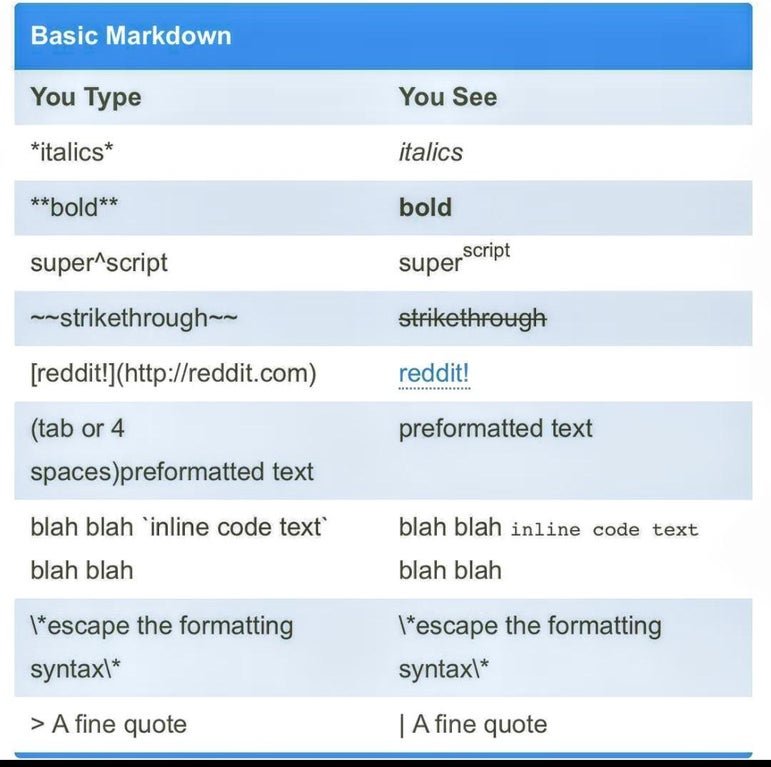
In the realm of digital content, few tools offer the elegant simplicity and powerful versatility of Markdown. While often lauded for its plain text formatting of prose, its true unsung hero for organizing information is the Markdown Table Fundamentals & Basic Syntax. Mastering Markdown tables means unlocking a straightforward yet robust way to present data, compare features, or structure content clearly and efficiently, transforming raw text into organized, readable insights.
At a Glance: Why Master Markdown Tables?
- Clarity: Organize complex data into digestible rows and columns.
- Simplicity: Create structured layouts with minimal, intuitive syntax.
- Portability: Your tables render consistently across many Markdown-compatible platforms.
- Readability: Enhance the user experience by breaking up dense paragraphs.
- Accessibility: Present information logically for both humans and machines.
- Efficiency: Learn the core syntax quickly and apply it instantly.
The Foundation: What Makes a Markdown Table?
At its heart, a Markdown table is a textual representation of rows and columns, built with a few simple characters: pipes (|) for column separation and hyphens (-) for defining the header. It’s a design philosophy that prioritizes human readability even in its raw form.
The Core Structure: Rows, Columns, and the Pipe (|)
Think of the pipe | as your column divider. Every piece of data, every cell, is encased by these vertical lines. A simple table starts with a header row, where you define the names of your columns. Each column name is separated by a pipe.
For example, if you want two columns, "Header 1" and "Header 2", you'd write:| Header 1 | Header 2 |
Each subsequent row of data follows the same pattern, ensuring that the number of pipes (and thus columns) remains consistent with your header.
Header and Separator: The Unsung Heroes
The magic truly happens in the second row—the separator line. This line isn't just cosmetic; it performs two crucial functions:
- Differentiating Header: It clearly tells the Markdown parser which row is the header and which rows contain data.
- Defining Alignment: It's where you specify how the content in each column should be aligned (left, right, or center).
This separator row uses hyphens (-) to create a line for each column, typically three or more hyphens per column. For a simple, left-aligned table, you'd just use hyphens:
markdown
| Header 1 | Header 2 |
|----------|----------|
| Cell 1 | Cell 2 |
| Cell 3 | Cell 4 |
When rendered, this Markdown will transform into a neat, two-column table:
| Header 1 | Header 2 |
|---|---|
| Cell 1 | Cell 2 |
| Cell 3 | Cell 4 |
Notice how the raw Markdown is already quite readable, a hallmark of its design philosophy.
Precision and Polish: Aligning Your Columns
Beyond just separating content, Markdown tables offer precise control over how text is aligned within each column. This subtle detail significantly impacts the readability and aesthetic appeal of your tables, guiding the reader's eye and making numerical data much easier to scan. The alignment is dictated by the colons (:) you place in the separator row.
Left, Right, and Center: Making Your Data Line Up
Here’s how to command your column alignment:
- Left-align: Place a colon on the left side of the hyphens.
|:---
This is the default alignment if no colons are used, but explicitly defining it improves clarity. - Right-align: Place a colon on the right side of the hyphens.
---:|
Ideal for numbers, as it helps align decimal points (even if implicitly). - Center-align: Place colons on both sides of the hyphens.
|:---:|
Let's see these in action with a table of product features:
markdown
| Feature | Availability | Price |
|:----------------|:------------:|---------:|
| Turbo Boost | Yes | $1,299 |
| Eco Mode | No | $799 |
| Extended Battery| Yes | $1,499 |
This Markdown will render as:
| Feature | Availability | Price |
|:---|:---:|---:|
| Turbo Boost | Yes | $1,299 |
| Eco Mode | No | $799 |
| Extended Battery| Yes | $1,499 |
Observe how the "Feature" column is left-aligned, "Availability" is centered for quick Yes/No scanning, and "Price" is right-aligned for easy comparison of monetary values. Choosing the right alignment makes your tables not just informative, but truly user-friendly.
Bringing Cells to Life: Formatting Your Table Content
One of the most powerful features of Markdown tables is their ability to house other Markdown formatting within their cells. This means your table content isn't confined to plain text; it can be bold, italicized, linked, or even contain snippets of code, allowing for richer and more descriptive data presentation.
Text Emphasis: Bold, Italics, and More
You can apply standard Markdown emphasis directly within any table cell.
- Bold: Use two asterisks (
**text**) or two underscores (__text__). - Italic: Use one asterisk (
*text*) or one underscore (_text_). - Bold and Italic: Use three asterisks (
***text***) or three underscores (___text___).
Consider a table highlighting important specifications:
markdown
| Component | Status | Notes |
|:----------|:--------------------|:-----------------------------|
| CPU | Optimized | Latest generation |
| RAM | Under review | Needs upgrade |
| Storage | Critical Error| Check drive health |
This will render as:
| Component | Status | Notes |
|:----------|:--------------------|:-----------------------------|
| CPU | Optimized | Latest generation |
| RAM | Under review | Needs upgrade |
| Storage | Critical Error| Check drive health |
Adding Links and Inline Code
Links and inline code snippets are perfectly at home within Markdown table cells, allowing you to reference external resources or display code examples directly alongside your data.
- Links:
link text - Inline Code:
`code`
Let's update our example to include links and code:
markdown
| Item | Description | Reference | Code Example |
|:----------|:-------------------------------------|:--------------------------|:------------------|
| Widget A | A versatile piece of tech. | Docs A |`func_a()`|
| Widget B | For advanced users. | Docs B |`class B`|
The rendered output provides clickable links and clear code:
| Item | Description | Reference | Code Example |
|:----------|:-------------------------------------|:--------------------------|:------------------|
| Widget A | A versatile piece of tech. | Docs A |`func_a()`|
| Widget B | For advanced users. | Docs B |`class B`|
Handling Line Breaks (<br>) within Cells
Sometimes a cell needs more than one line of text without creating an entirely new row. While Markdown doesn't have a native inline line break syntax that's universally supported, many Markdown applications, especially those supporting HTML, allow you to use the HTML <br> tag for this purpose.
markdown
| Task | Details | Due Date |
|---|---|---|
| Project X | Initial briefing Develop concept proposal. | 2023-10-26 |
| Project Y | Final review Prepare client presentation. | 2023-11-15 |
| This will effectively break the text onto a new line within the same cell: | ||
| Task | Details | Due Date |
| :---------- | :------------------------------------------------- | :--------- |
| Project X | Initial briefing Develop concept proposal. | 2023-10-26 |
| Project Y | Final review Prepare client presentation. | 2023-11-15 |
| By combining these formatting options, you can create rich, highly informative tables that go far beyond simple grids of text. |
Beyond the Basics: Handling Complexities
While the core syntax for Markdown tables is wonderfully straightforward, real-world data often demands a bit more nuance. Here, we'll explore some slightly more advanced techniques to manage complex layouts, display special characters, and provide additional context for your structured data.
Spanning Cells: A Note on Advanced Layouts
The ability to merge cells, particularly across columns, is a common need in table design. In GitHub Flavored Markdown (GFM), the ground truth indicates that "Cells can be made to span multiple columns by adding extra pipes |." However, it's important to understand that native GFM tables primarily focus on a fixed grid structure. The interpretation of "extra pipes" to span cells can vary significantly across different Markdown parsers and renderers.
While some advanced Markdown editors or custom renderers might interpret additional pipes in a way that visually merges cells, standard GFM typically expects a one-to-one correspondence between header columns and data columns. If you declare two columns in your header, you generally provide data for two columns in each subsequent row.
For instance, if the intent is to have "Item C" span two columns, a literal interpretation of "adding extra pipes" might look like:
markdown
| Column A | Column B | Column C |
|---|---|---|
| Data A1 | Data B1 | Data C1 |
| Data A2 | Data B2 | |
| Item C | ||
| *Note: This specific syntax (` | ||
If precise colspan functionality is critical and inconsistent rendering is unacceptable, using raw HTML tables (<table><tr><td>) within your Markdown is generally the most reliable approach for advanced cell merging. Markdown is designed for simplicity, and deeply complex table layouts sometimes exceed its basic syntax capabilities. |
Escaping the Pipe: When | is Content, Not Structure
What if your data itself contains a pipe character (|)? Since the pipe is the fundamental column separator, you can't just type it. Markdown provides a simple solution: escaping characters with a backslash (\).
To display a literal pipe | character within a table cell, simply precede it with a backslash: \|.
markdown
| Command | Description | Output Example |
|---|---|---|
grep "text" | Finds "text" in files. | line 1 | line 2 |
cat file.txt | Displays file contents. | Hello | World |
| This will correctly render the pipe as part of the cell's content, not as a column divider: | ||
| Command | Description | Output Example |
| :-------------- | :-------------------------------- | :------------------------- |
grep "text" | Finds "text" in files. | `line 1 |
cat file.txt | Displays file contents. | `Hello |
Adding Context: Table Captions
While not part of the table's core syntax, a good table often benefits from a caption that provides a concise summary or title. In Markdown, you can simply add a caption using regular Markdown text (like a heading or a paragraph) directly below your table.
markdown
| Year | Sales (USD) | Growth |
|---|---|---|
| 2020 | 1,200,000 | +12% |
| 2021 | 1,350,000 | +12.5% |
| 2022 | 1,500,000 | +11.1% |
| Table 1: Annual Sales Performance Overview | ||
| This ensures your table is self-explanatory and easy to reference within your document. |
Smart Table Practices: Tips for Clarity and SEO
Beyond just syntax, using Markdown tables effectively involves thinking about how your data will be consumed. Smart practices ensure your tables are not only structurally sound but also highly readable, maintainable, and even discoverable by search engines.
Managing Column Widths: A Manual Art
Markdown itself doesn't offer native features to explicitly control column widths (like pixel values or percentages). The width of your columns is typically determined by the content within the cells and the rendering engine's default styling.
However, you can influence column widths manually for better visual balance:
- Pad with spaces: Add extra spaces around cell content, especially in the header and separator rows, to give the illusion of more uniform width. Markdown parsers will generally ignore the extra spaces for display, but it makes the raw Markdown more readable.
- Consistency: Try to keep the number of hyphens in your separator row consistent (e.g., at least three hyphens
---) even if the column title is short. - CSS (if applicable): If you're working within an environment that allows custom CSS, you can apply styles to rendered Markdown tables (
<table>,<th>,<td>) to achieve precise width control. This is common in web contexts.
Remember, Markdown is plain text-focused. For ultimate control over presentation, a full HTML table (either directly or through a robust Markdown extension) might be necessary.
Embedding Footnotes for Detail
Sometimes, a piece of data in a table cell requires a brief explanation or a source without cluttering the cell itself. You can effectively use a simple * syntax within a cell to denote a footnote, then reference it elsewhere.
While Markdown doesn't have a dedicated footnote syntax within tables that's universally standardized, a common approach is:
markdown
| Metric | Value | Note |
|---|---|---|
| Revenue | $1.2M | Projected |
| Customer Growth | 15% | 1Q Actual[1] |
| [1]: Data as of Q1 2023. | ||
Here, the *Projected* is standard Markdown italic, but the [1] acts as a visual cue for a reference provided immediately below the table. This keeps the table content clean while providing necessary context. |
Keywords for Visibility: Making Your Data Discoverable
Just like any other content, the text within your tables contributes to your content's overall search engine visibility. Incorporating relevant keywords into your table headers and cell content can subtly boost your SEO efforts.
- Descriptive Headers: Instead of generic "Col 1," use "Product Feature," "Pricing Model," or "Key Benefit."
- Rich Cell Content: If a cell contains "High Performance," it's more informative (and keyword-rich) than just "Good."
- Contextual Language: Ensure the language used in your tables aligns with how your target audience searches for information.
A well-constructed table, filled with clear and descriptive language, serves multiple masters: it's easy for readers to understand, accessible for screen readers, and informative for search engines. To streamline the creation of these structured data displays, especially for complex layouts, consider leveraging tools that automate the Markdown syntax. Our goal is to empower you with the knowledge to structure information effectively, and Our markdown table generator can be an invaluable asset in this process, helping you quickly build and preview your Markdown tables.
Common Questions & Troubleshooting
Even with clear syntax, working with Markdown tables can sometimes present quirks. Here are answers to common questions and issues you might encounter.
"Why isn't my table rendering correctly?"
This is the most frequent issue. Here are the usual culprits:
- Missing or Mismatched Pipes: Ensure every row (header, separator, and data) has pipes surrounding the content and between each column. The number of pipes should generally align with the number of columns defined by your header.
- Incorrect Separator Row: The separator row must use at least three hyphens (
---) per column. Colons (:) for alignment must be directly adjacent to the hyphens. - Blank Lines: Ensure there's a blank line before and after your table. Markdown parsers often require this to correctly identify table blocks.
- Indentation: Markdown tables generally should not be indented. Indenting them can cause them to be interpreted as code blocks by some parsers.
- Parser Variations: While GitHub Flavored Markdown (GFM) is a de facto standard, minor variations can exist between different Markdown editors or platforms. If it's not working, try a different editor or check the specific Markdown flavor documentation for your platform.
"Can I merge rows in Markdown?"
Standard Markdown table syntax (including GFM) does not natively support merging rows (rowspan). The table structure is strictly row-by-row, column-by-column. If you need to merge cells vertically, you will typically need to use raw HTML <table> elements with rowspan attributes directly within your Markdown document. This sacrifices a bit of Markdown's plain-text simplicity for layout precision.
"What about really wide tables?"
Wide tables can be a challenge for Markdown, especially on smaller screens. Markdown doesn't inherently handle horizontal scrolling or responsive table design.
- Simplify: Can you break the table into smaller, more focused tables?
- Vertical Layout: Sometimes, transposing the table (making rows into columns and vice-versa) can help, especially for comparison data.
- HTML & CSS: For web contexts, wrapping a wide Markdown table in a
<div>withoverflow-x: auto;in your CSS is the standard solution to enable horizontal scrolling. - Condense Content: Use abbreviations or more concise language within cells.
Your Next Step: Structuring Content with Confidence
You've now got the Markdown Table Fundamentals & Basic Syntax firmly in your toolkit. From setting up your basic grid to finessing alignment, embedding rich content, and navigating common complexities, you're equipped to transform chaotic data into orderly, elegant displays.
The power of Markdown lies in its ability to marry simplicity with robust functionality. By consistently applying these principles, you'll not only create highly readable documents but also cultivate a more organized approach to your information architecture. Start small, experiment with the different alignment options, and gradually integrate more complex formatting. Whether you're documenting software, preparing reports, or simply organizing your personal notes, Markdown tables are an indispensable asset for clear and effective communication. Embrace them, and watch your content become more structured, more insightful, and ultimately, more impactful.